
Guide3 min read
Make a word list (with definitions)
Paste your words, add meanings if you want quiz modes, save. A list works for live games and homework alike.
Tested in the app · Updated October 2, 2026
A word list (also called a lesson) is the words a game or homework uses. You can paste one in ten seconds, or build a richer one that unlocks more practice types.
Step 1: Open your lists
Go to Library, switch to My lists and press New list.
Step 2: Paste or type the words
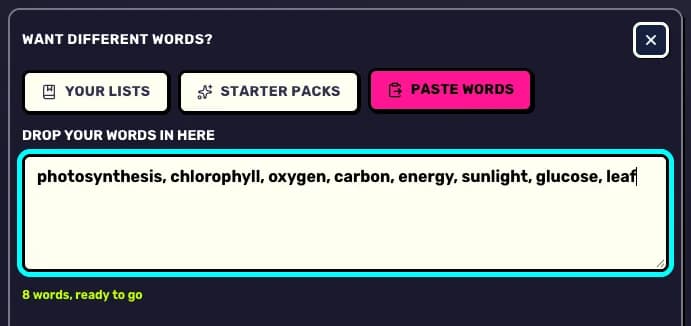
Separate words with commas or put one per line. Write word - meaning to add a definition as you go. You can also import a CSV or TSV file, or start from a starter pack.
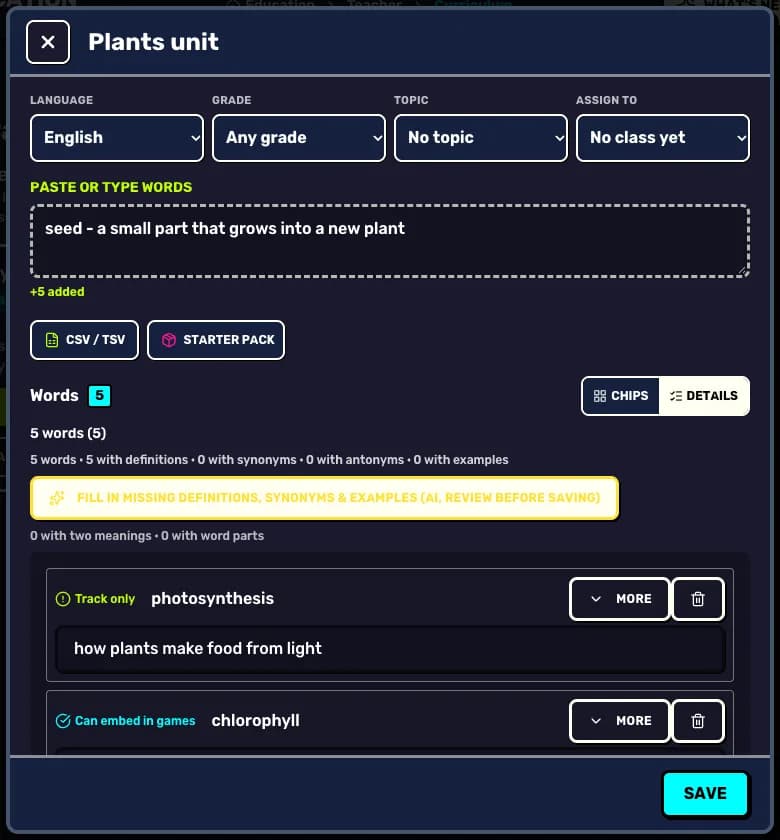
Step 3: Fill in the details
Switch to Details to add meanings, synonyms, antonyms and example sentences. The AI button can suggest the missing ones; check them before you save.
Step 4: Save and use it
Press Save. The list now appears under the posters in Teacher HQ and in the homework picker.
Why definitions are worth it
Words with meanings unlock Vocab Quiz and definition homework. Add synonyms, antonyms, example sentences or word parts to four or more words and the matching homework skills unlock too.
Your next step
Run a live game now
Pick a game, pick the words, and your class is playing a minute later.

Did this answer your question?