
Guide3 min read
Assign homework students play on their own
Pick a word list, choose the kind of practice, set a due date. Students play it from their class page whenever they like.
Tested in the app · Updated October 2, 2026
Homework uses the same word lists as your live games. Students find it on their class page, so there is nothing new to explain.
Step 1: Open Create Assignment
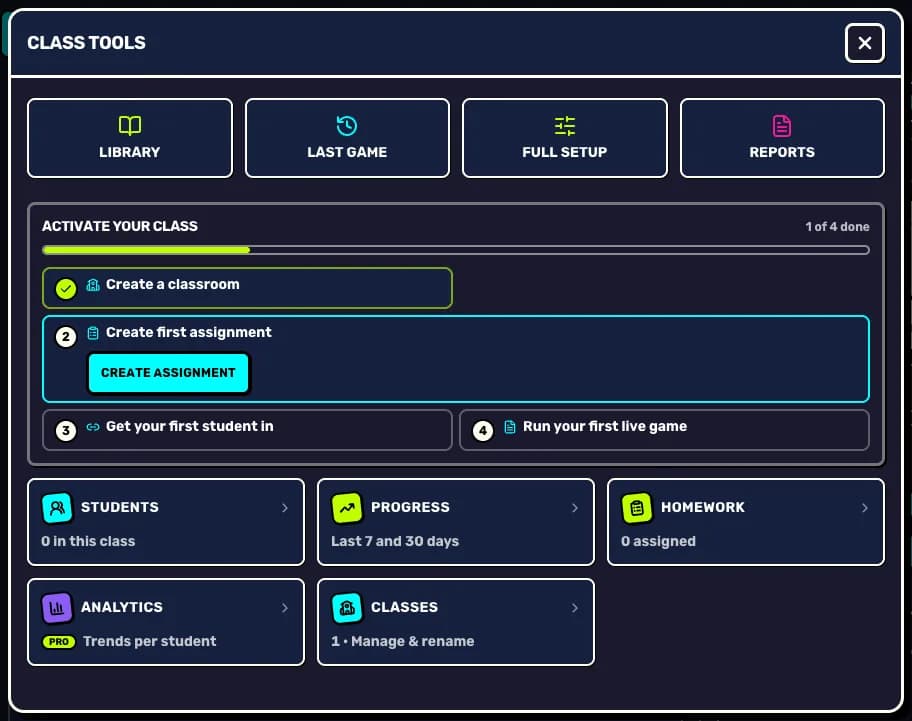
In Teacher HQ, open Class tools and press Create assignment. You can also start it from the class checklist the first time.
Step 2: Pick the word list
Choose the lesson the homework should practise. Any list you made, pasted or saved from a starter pack shows up here.
Step 3: Choose the kind of practice
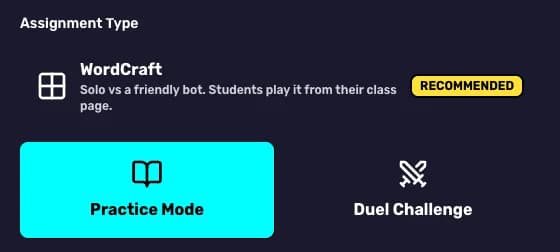
WordCraft (recommended) is solo play against a friendly bot. Practice mode drills the words, and Duel challenge pairs students up.
Step 4: Set what it drills
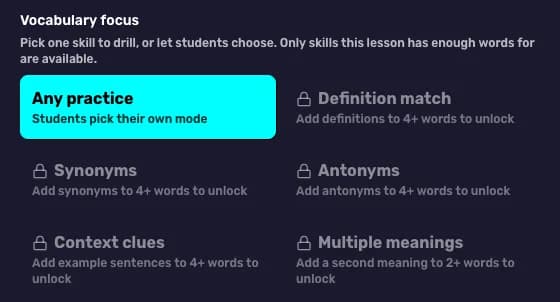
With Practice mode you can pick a Vocabulary focus such as definitions, synonyms or context clues, or leave it on Any practice. A skill unlocks once enough words in the list have that detail.
Step 5: Set the due date and assign
Pick Due date with one tap (today, tomorrow, next week) or choose a date, add optional instructions, then press Create assignment.
Your next step
Try it with your class today
Teacher HQ is free. Press Go live and your join code is on the board in seconds.

Did this answer your question?