
Guide2 min read
How students join (code, link or QR)
Students type a six-character code, open your link or scan the QR, then pick a name. No accounts, no emails, no app to install.
Tested in the app · Updated October 2, 2026
Joining takes about ten seconds on a phone, tablet, Chromebook or laptop. It works in any modern browser.
Step 1: Put the code where they can see it
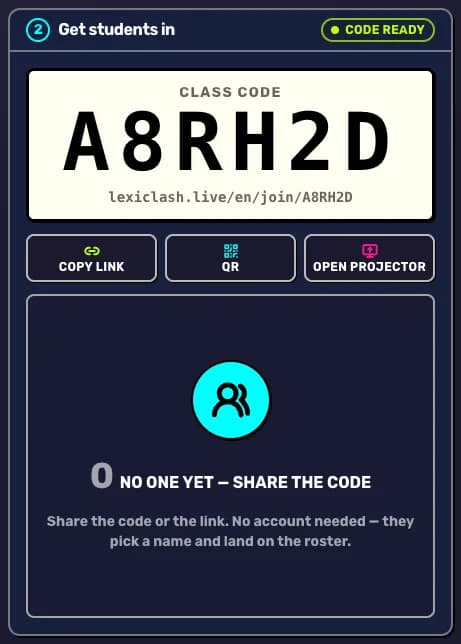
In Teacher HQ, the Get students in card shows your code. Use Open projector for a big full-screen version, QR for a scannable code, or Copy link to paste the link into your class chat or LMS.
Step 2: Students open the join page
They go to lexiclash.live/join and type the six characters, or they open your link or scan the QR, which fills the code in for them.
Step 3: Students pick a name
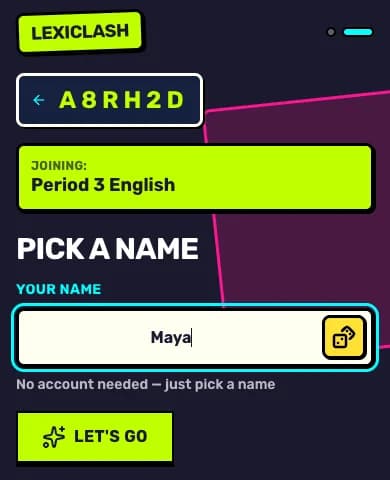
They see which class they are joining, type a name (or tap the dice for a random one) and press Let's go. That is it.
Step 4: Watch the roster fill
Each student appears on your screen as they arrive. Students who join a class this way are added to its roster, so their results land in your reports.
If a student cannot get in
- Check the code: it is six letters and numbers, and the one in the live lobby is the one that counts during a game.
- Ask them to reload the page. A half-loaded page on school Wi-Fi is the usual culprit.
- If you ended the game, the room is closed. Press Go live again and share the new code.
Your next step
Run a live game now
Pick a game, pick the words, and your class is playing a minute later.

Did this answer your question?